If an iPhone won’t connect to MikroTik Wi-Fi, even though it can see the network and you’ve entered the password, this might help. I recently encountered exactly that problem on my home network and traced it to an unexpected CAPsMAN configuration setting.
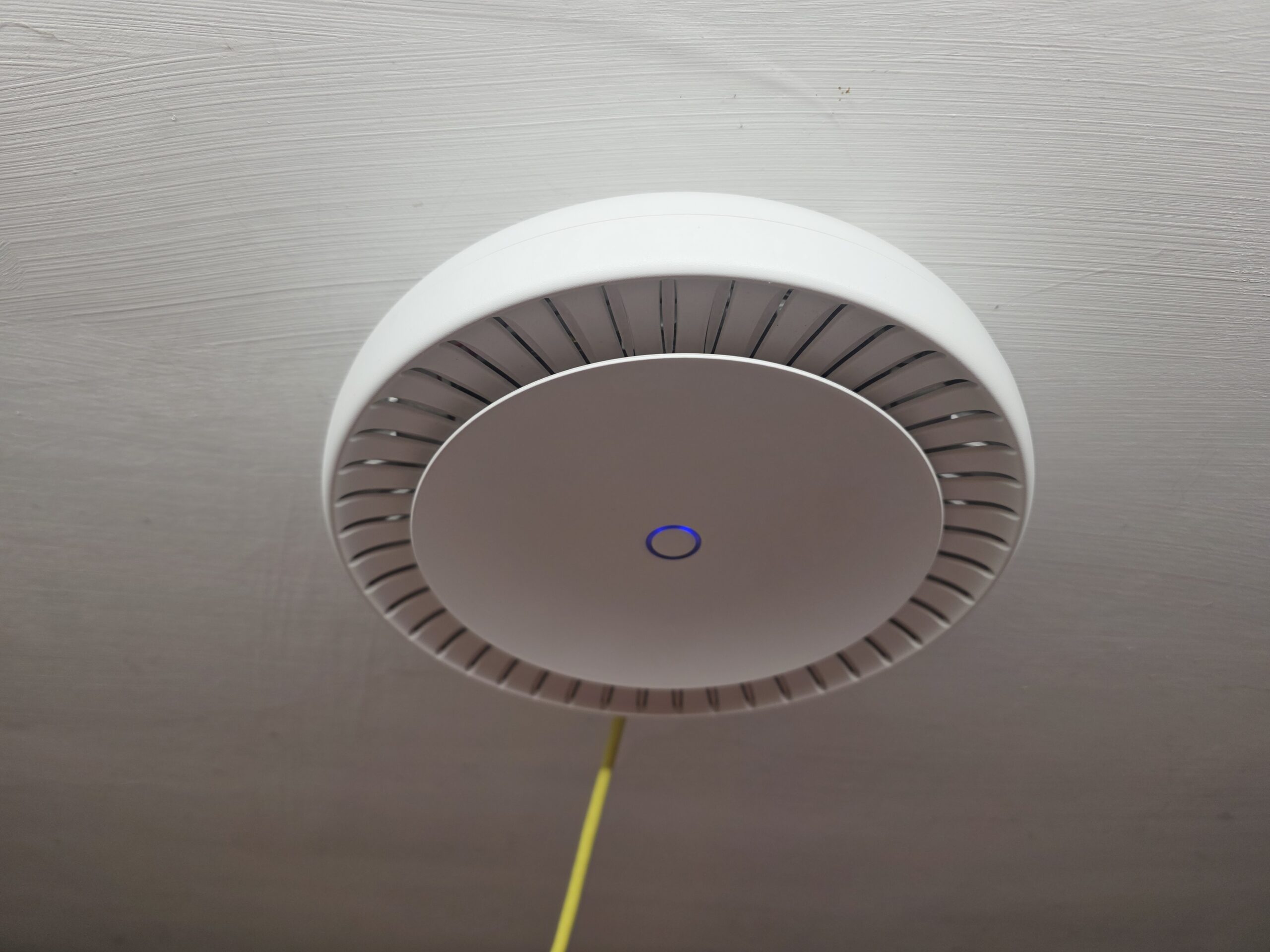
My setup uses a MikroTik RB5009 router with cAP ax access points managed through CAPsMAN. That gives me a central place to manage the wireless configuration, but it also meant the setting behind this problem needed to be tracked down in the configuration profiles.
The eventual fix was a single command to remove an unexpected setting:
/interface wifi configuration unset value-name=interworking.realms-raw [find]Once that property was removed, the iPhone connected successfully.
iPhone won’t connect to MikroTik Wi-Fi: the symptoms
The awkward part was that there wasn’t an obvious error pointing to the cause.
The iPhone could see the SSID—the Wi-Fi network name—and allowed the password to be entered. It then remained stuck trying to join. Checking the MikroTik log didn’t give me anything useful to explain what was happening.
That left a connection problem without much evidence to work from.
The setting that stood out
Looking through the Wi-Fi configuration revealed this property:
interworking.realms-raw=""It was present with an empty value.
MikroTik documents realms-raw as a way to manually configure NAI realm information within the Wi-Fi interworking features. It relates to information advertised to wireless clients and was not something I had deliberately configured for this home network.
I don’t know how the property ended up there, so I’m not going to blame a particular RouterOS update, configuration tool or device.
What I could establish was that removing it resolved the connection problem on my network.
How I fixed it
The command I used was:
/interface wifi configuration unset value-name=interworking.realms-raw [find]The important part is unset. This removes the explicitly configured property, rather than assigning another empty value to it.
Also worth understanding: [find] selects all profiles in /interface wifi configuration. The command above therefore removes that property across those profiles, rather than targeting just one.
If you’re investigating a similar problem, first inspect your configuration:
/interface wifi configuration exportLook for:
interworking.realms-raw=""Before making a change, save a backup and check whether your network intentionally uses interworking or realm settings. On a centrally managed CAPsMAN setup, inspect the configuration on the device managing the profiles.
To limit the change to one profile, you can use its name:
/interface wifi configuration unset value-name=interworking.realms-raw [find where name="YOUR_PROFILE_NAME"]Replace YOUR_PROFILE_NAME with the exact name of the affected configuration profile.
These commands relate to the /interface wifi configuration used in my setup. Older MikroTik wireless configurations use different menus, so check that the command matches your equipment.
What happened afterwards?
After removing the property, the iPhone connected successfully.
That was the result I needed: a small configuration change with a clear before-and-after outcome.
I haven’t established the underlying protocol-level reason, and this experience alone doesn’t prove that every iPhone connection problem on MikroTik equipment has the same cause. It does give me a specific setting to check if I see these symptoms again.
Something to remember for next time
I’m writing this partly as a reminder to myself, and partly because someone else might be staring at an iPhone that can see their MikroTik Wi-Fi but simply won’t join.
If you have cAP ax access points, use CAPsMAN, and find an unexpected interworking.realms-raw="" entry in your configuration, it is worth investigating.
For my network, removing that property was the fix.
Technical reference: MikroTik’s Interworking for WiFi6 documentation.